  |


Please review these specifications carefully. All files must meet the requirements and be 100% complete. In the case that your files do not meet minimum requirements we will make every effort to contact you to correct the problem.However, if you cannot be reached we assume no responsibility for your artwork missing the scheduled run.
|
| Resolution | 300 DPI + | Proof | You may provide a proof for us to compare with. It MUST be a laser output. Digital files will not be accepted. |
| File Formats |
EPS TIFF |
Colour |
Front: CMYK Back: Grayscale / B&W |
| Software |
Quark XPress 4 + (EPS)* Photoshop 5 + (TIFF) Illustrator 8 + (EPS) InDesign (EPS) |
Fonts |
Fonts must be supplied as outlines (in EPS) or as seperate suitcases.
They cannot be in a collection. PC fonts will NOT be accepted. |
| * Please note when submitting Quark XPress files ensure that you have named all colours within the file a different name than "New Color". By default Quark will name a new colour "New Color" and if conflicts arise your colour might be lost. This error cannot be spotted until we go to press, your order could be compromised. | |||
Digital Submission Guidelines
When submitting your files digitally you can choose between one of two options: Email, or using our web upload facility. To access web upload click here. With any of the options please make sure you are using the file-naming requirements listed below.
| File Names |
[companyname]_front.[extension] [companyname]_back.[extension] Example: Adfactor_front.tiff Adfactor_back.tiff |
|
sales@adfactor.com
Maximum 3 MegaBytes |
Physical Media Submission Guidelines
We are not responsible for CD's, Disks, or Artwork (submitted for scanning or proofing) that are not picked up within 30 days of Delivery. Please make sure you pick up all physical media you have submitted when picking up your order.
| Media |
CD 100 MB Zip Disk 250 MB Zip Disk We do NOT accept floppies. |
Physical Media Submission Guidelines
Supplied artwork must meet size specifications listed below. Please keep in mind that your business card or postcard will be trimmed. Carefully review the bleed and trimming of your artwork to ensure no errors while printing.
|
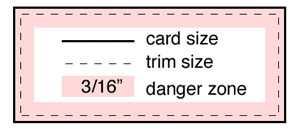 *Note: Illustration not to scale |